
Original frame
Begin with the approved reference photo, keeping enough of the original scene visible to judge the new framing before you expand an image.
Flexible product image framing
Use AI Image Expander to extend an image into a wider or taller scene for listings and campaigns, then inspect the added setting and crop.
Extend an image, then inspect it at destination size.
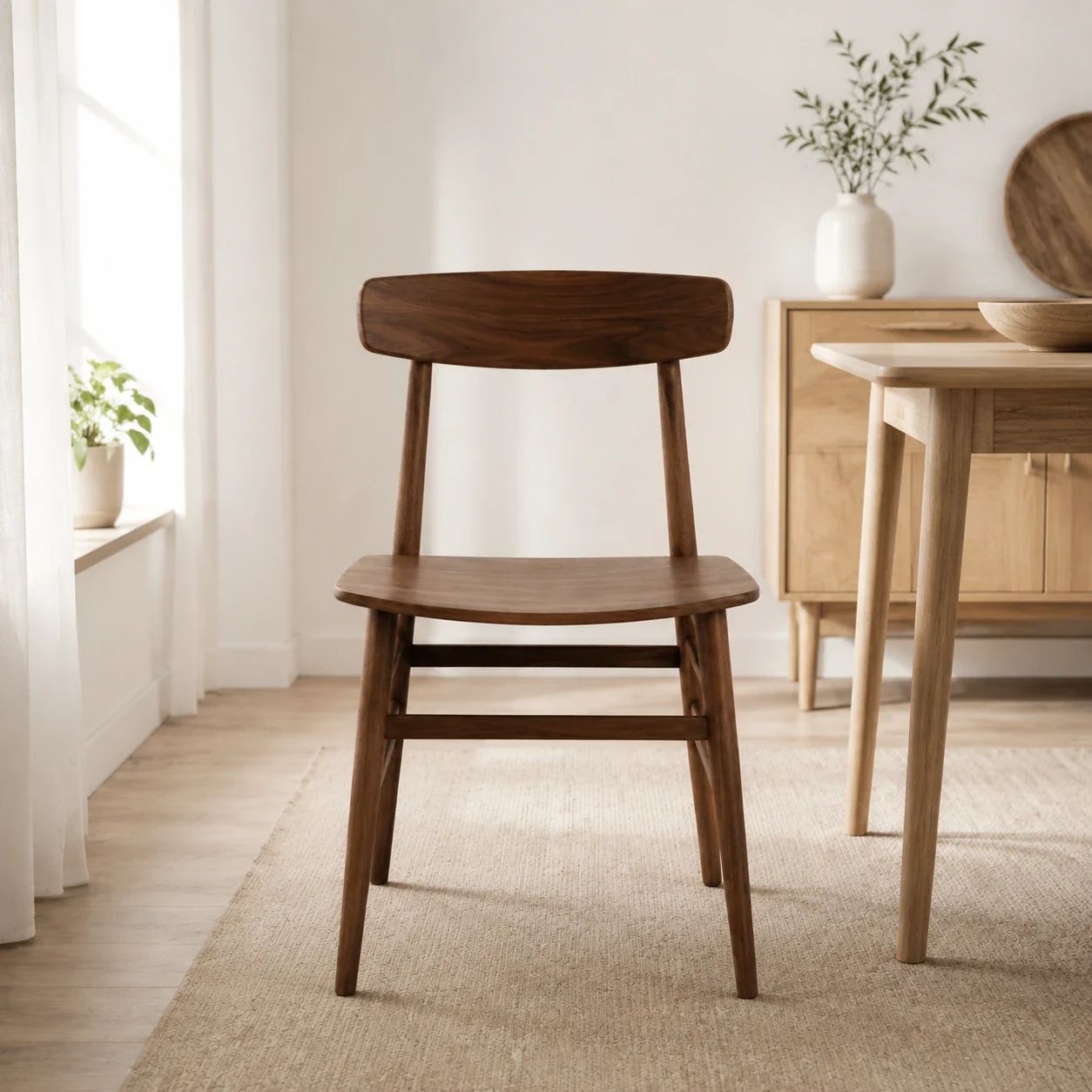

Image expansion examples
See how image expansion can add surrounding space for commercial layouts. Each result is a generated interpretation, so compare the item, its edges, and the added setting with the original before choosing a file.
Begin with the approved reference photo, keeping enough of the original scene visible to judge the new framing before you expand an image.
Expand an image to create room around the subject for a new format, then inspect where the reference meets the generated surroundings and whether the composition still reads clearly.
Use image expansion for a horizontal campaign slot while checking that the added setting supports, rather than competes with, the item and planned copy.
Prepare an expanded image for ads and social creative, checking spatial details, empty space, and crops for every placement where the file may appear.
Use cases
Fit a valuable catalog photo into places where a tighter reference crop no longer works. AI Image Expander can extend an image for alternate layouts while retaining the original as a reference for item details, scene intent, and brand review.
Use image expansion to add room for store headers and category promotion. Check the complete banner at its intended crop, including the item silhouette, background details, and room reserved for text or navigation.
Expand an image for a required aspect ratio or framing. Compare it with marketplace guidance and inspect packaging, labels, edges, colors, and information shoppers need before submission.
Use an expanded image to make room for item context, copy, and campaign composition. Treat the result as a creative draft, then check whether the added scene, shadows, surfaces, and perspective support the message.
Use image expansion for the wider or taller framing you need, then inspect the added area before publishing. The workflow creates a new full result beyond the reference frame; it does not promise that every original or generated detail remains unchanged, accurate, or suitable for a particular channel.
Choose a clear catalog or marketing photo with the subject, important edges, and useful surroundings visible. Avoid a reference that already hides labels, clips the item, or makes the intended composition hard to judge.
Use the prompt to state whether the frame should feel wider or taller, where the item should sit, and what surroundings or copy space are needed. Refer to the real placement and crop so the requested image expansion has a practical purpose.
Check the item, edges, and newly generated surroundings against the original. Inspect materials, labels, textures, shadows, reflections, repeated patterns, perspective, and the destination crop before selecting a file for publication.
Built for flexible framing
AI Image Expander can extend an image when the next ecommerce or marketing placement needs more space. Use the original photo as the reference while a reviewer decides whether the generated expansion is appropriate for the item and channel.
01
Create room for horizontal storefront and ad layouts while preserving a clear product focus. Inspect the transition into added canvas, the balance of the scene, generated background details, lighting, and overall visual hierarchy in the final crop at the size customers will see.
02
Reframe a source image for a new channel without starting over. Use the source to compare product cues, scene boundaries, and brand-critical details, then validate the resulting image against the placement's current visual, cropping, accessibility, device-specific, audience, and publishing requirements.
03
Build a more complete surrounding scene for campaign use when the source needs room to breathe. Review the generated context for unintended objects, unrealistic geometry, distracting patterns, inconsistent lighting, awkward transitions, and visual claims the original asset did not make.
Product categories
Give product imagery the space it needs for channel-specific visual formats. Category assets still require a human check for product accuracy, brand treatment, and the standards of the marketplace, store, or campaign where they will appear.
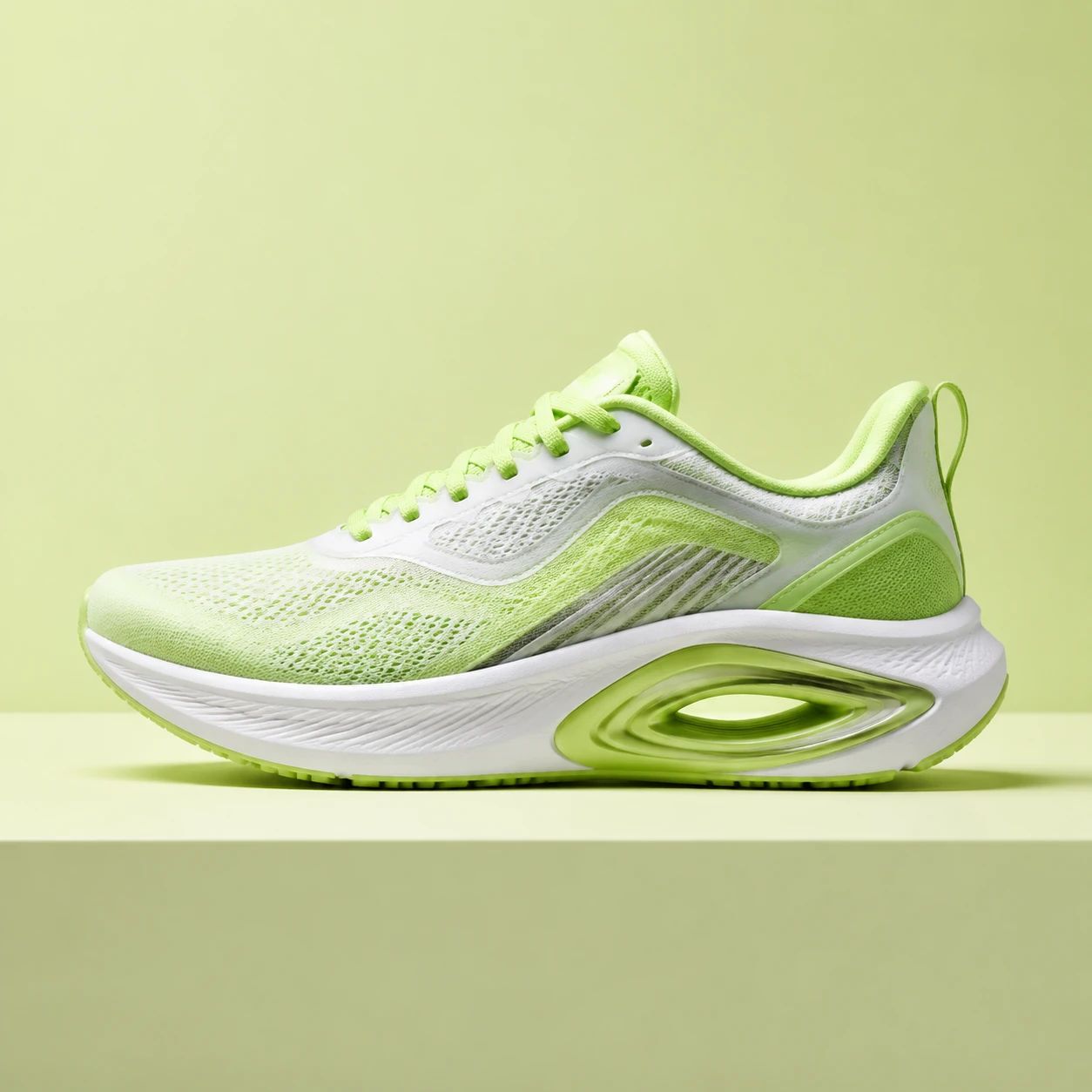
Extend a product composition for collection banners and editorial merchandising. Inspect the shoe or garment outline, fabric, color, accessory details, and new surrounding environment before using the expanded view in a customer-facing layout.

Create space for packaging, benefits, and campaign framing. Carefully review labels, claims, small print, reflective surfaces, container shape, and the new background so the image remains a useful visual representation.
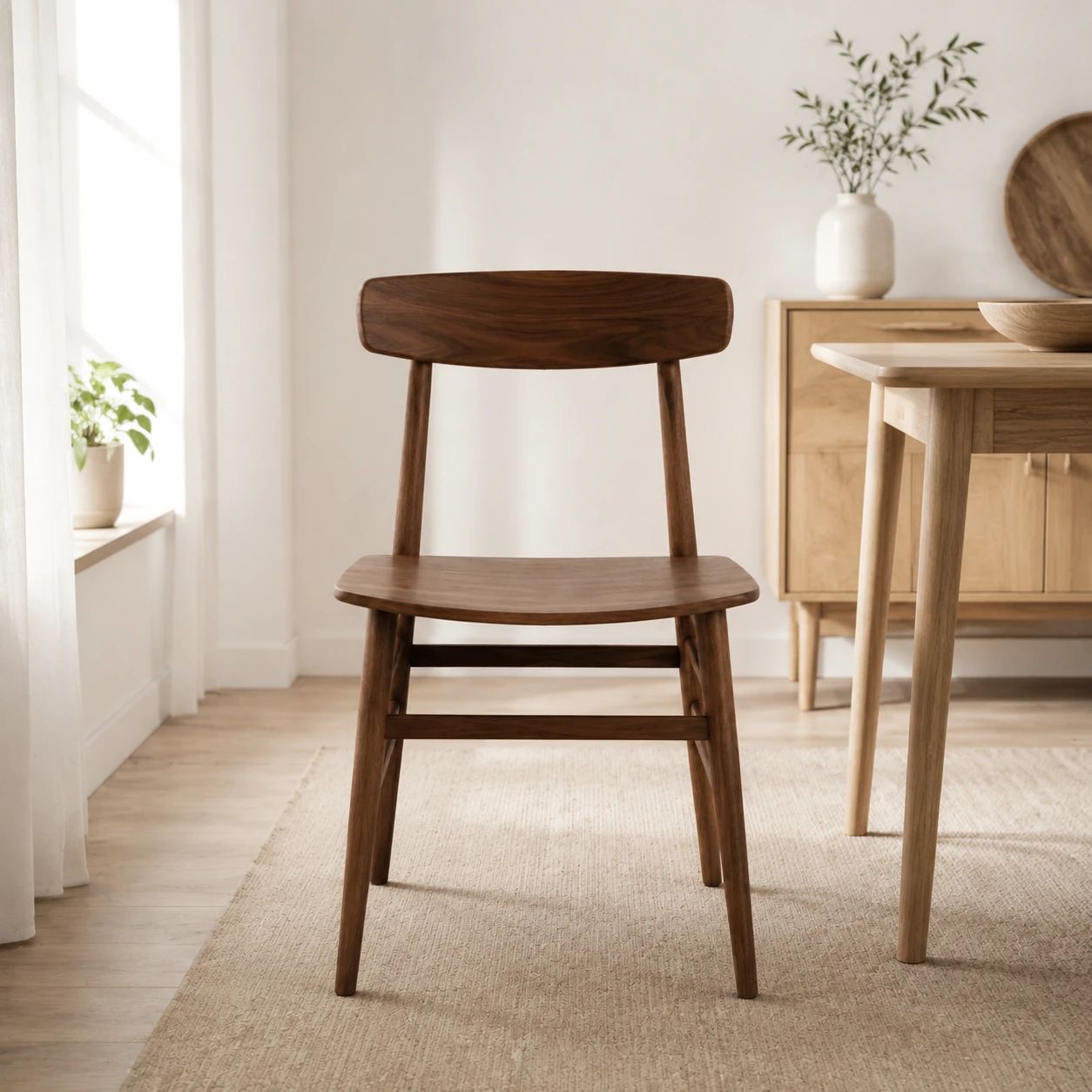
Adapt product images to wide store and catalog layouts. Check furniture edges, materials, scale, joins, and the expanded room context before relying on the asset for a product story or merchandising decision.
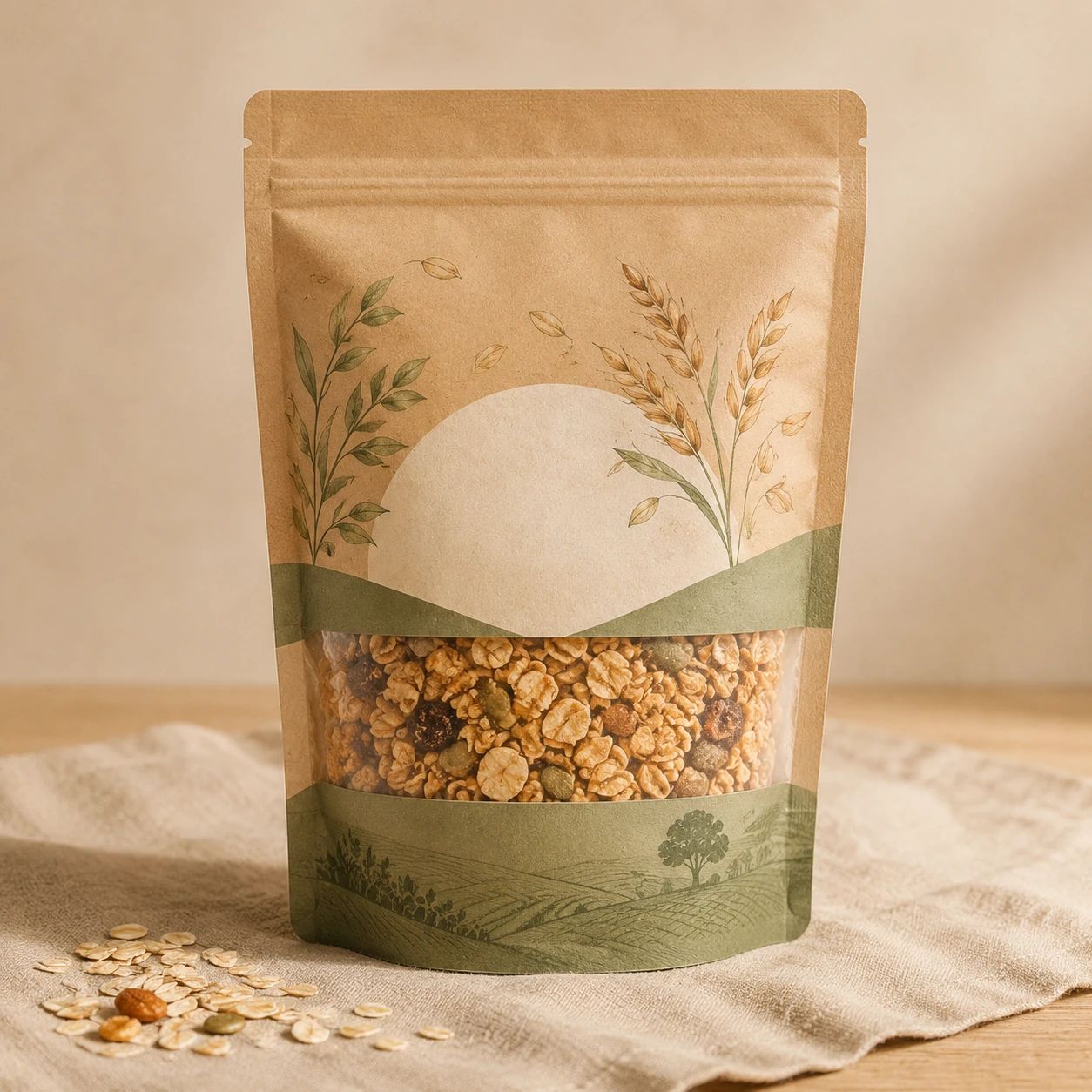
Make room for an ingredient-led or seasonal campaign setting. Review packaging, food appearance, props, serving context, and any generated text or claims, especially when the image will influence a purchase decision.
Answers about expanding product images for formats and commercial layouts. Generated output should be reviewed as a complete image, not assumed to be an exact extension of the original source.
Use a clear source image where the product or main subject, its edges, and enough surrounding context are visible. A source with severe blur, tight cropping, hidden labels, or ambiguous lighting gives you less reliable material to evaluate. Keep the original available during review so you can compare important visual details, overall scene balance, and final channel crops rather than relying only on the expanded preview.
You can choose a wider frame to explore a banner composition, but review the result for the exact placement. Check the subject's position, the transition into added canvas, the space reserved for copy, and the final crop on the destination surface. Also verify the current image rules, branding guidance, and required disclosures of the store, marketplace, or advertising channel before publication.
Consider expanded images for ecommerce only after reviewing the final image against the channel where it will appear. Confirm product details, packaging, colors, labels, proportions, and any required product visibility. The tool helps generate creative layout options; it does not establish marketplace approval, legal clearance, rights, or compliance with changing platform standards.
Check subject edges, added surroundings, product details, and the final aspect ratio. Also inspect textures, small text, repeating patterns, shadows, reflections, perspective, and background geometry. View the result at working size and at the smaller crop customers will see. If a purchase-critical, brand-critical, or scene-critical detail is unclear, revise the direction or use another asset.
No. The tool generates visual content beyond the original canvas to form a wider or taller composition. That added area may include scene elements, surfaces, light, or context suggested by the source and direction. Because it is generated, inspect the entire result for continuity and do not assume the extension is a factual record of what existed outside the original frame.
Start with the destination rather than a generic ratio. In the prompt, describe whether the result should feel wider or taller, where the product should remain, what surrounding context belongs in the scene, and where campaign copy may sit. Then review whether the generated composition still communicates the item clearly at the final crop and display size.
Describe the intended placement and surrounding scene in concise, practical language. Mention the product, the desired composition, and any context that matters to the visual goal. Avoid trying to treat the prompt as a technical guarantee. A focused direction gives a reviewer a clearer basis for comparing generated options with the source and deciding whether one supports the brief.
Use it as a candidate creative asset and review it before release. Confirm that the product representation, claims, logos, required disclosures, and visual treatment fit the active campaign brief and the relevant platform policies. Check multiple placements because a composition that works in a wide preview may crop poorly or become unclear in a mobile feed or smaller ad unit.
Do not publish the image as-is. Compare the result with the source, identify whether the issue is product-related, environmental, or compositional, and try a clearer direction or another source image with more useful context. When important product details, text, materials, or scene relationships remain unclear, choose a different asset or return to an approved photography workflow.
It can help a team explore a layout before arranging new photography, but it is not a substitute for review or for source material when exact product representation matters. Use the generated image to discuss framing and campaign direction, then decide whether the required detail, accuracy, and approval process call for original photography, retouching, or another production method.
Use AI Image Expander to create a wider or taller product composition for your next listing, banner, or marketing asset.
Start with the source image and make room for the next channel.