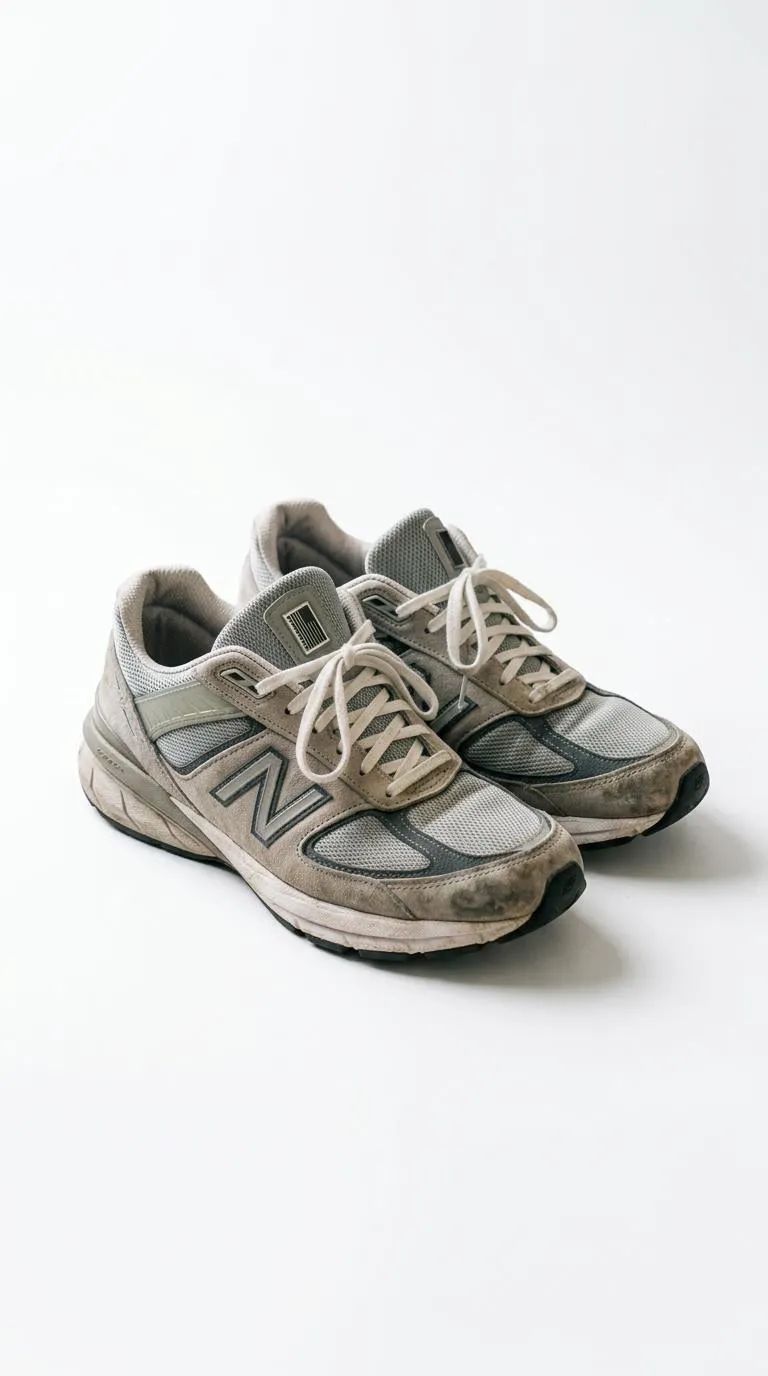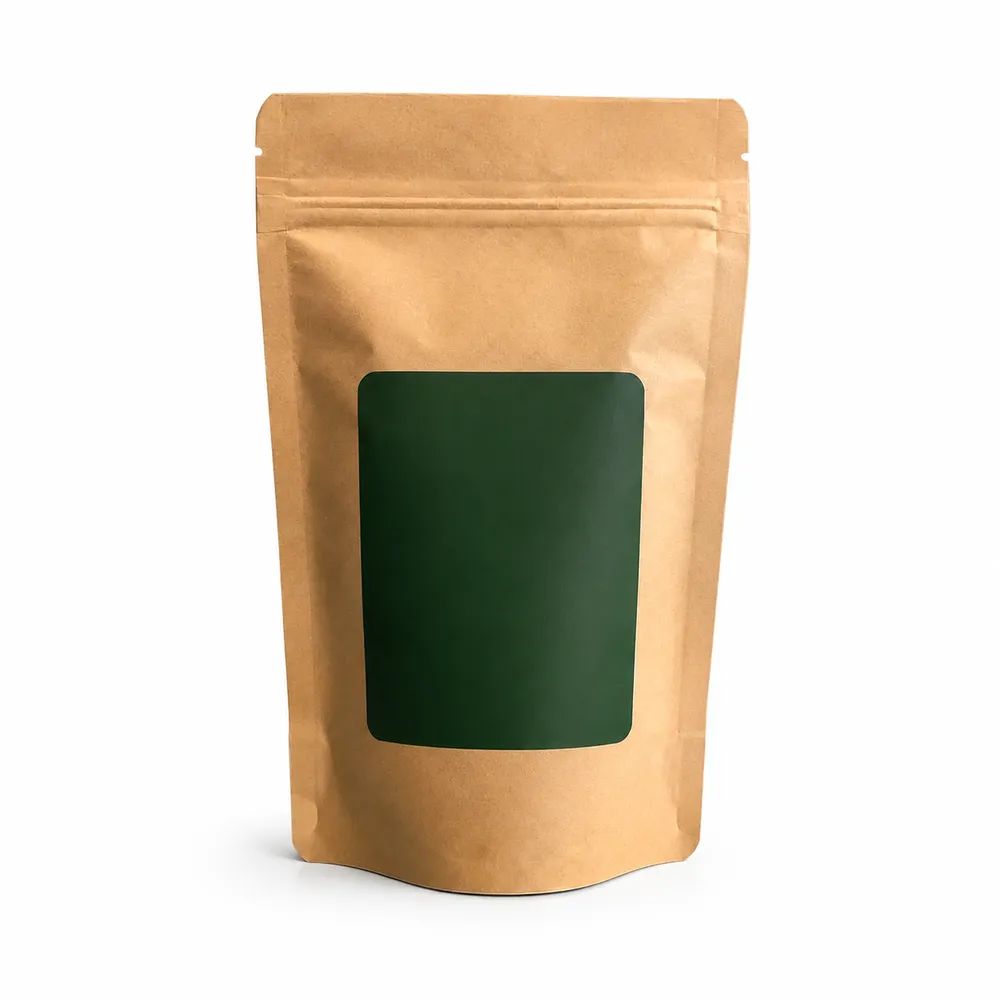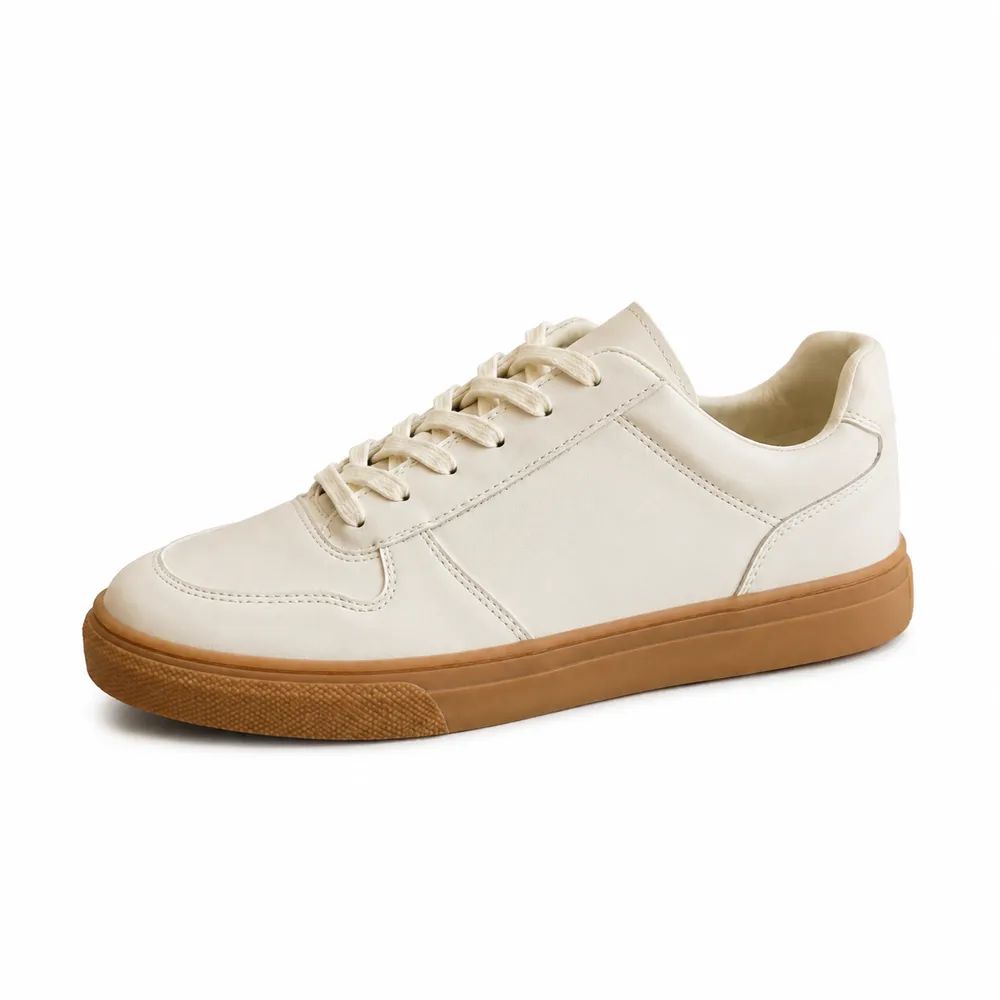
Source product photo
Start with a clear image where the full item, key material, labels, and product edges are visible enough to compare after the background changes.
Catalog-ready product photography
Generate a product white background from a clear upload, then review the white-background product image for your channel.
Upload a product photo, generate a backdrop, and check product details.


White background examples
A white background can make a catalog easier to scan, but it still needs thoughtful composition and product review. Compare each result with its source image and with nearby listings. Check whether the item remains centered, readable, and correctly colored at the intended crop. The goal is a focused product image that suits your own store or channel, not a promise of automatic marketplace approval.

Start with a clear image where the full item, key material, labels, and product edges are visible enough to compare after the background changes.

Generate a simple white product background, then inspect the silhouette, contact area, shadows, color, and open space around the item before final use.

Keep hardware, controls, ports, material, and finish easy to inspect, while checking whether the product crop works at the displayed marketplace or store size.

Use a consistent white background for a product range, then review small label text, cap edges, packaging color, reflective surfaces, and collection alignment.
Use cases
A Product White Background can give shoppers and internal teams a quieter view of the item. Plan the intended channel before generating: product detail pages, marketplaces, seasonal collections, and ads can use different crop, spacing, or image-policy rules. Review the finished product image on white beside the original source and current channel guidance before adding it to a live catalog or campaign.
Prepare a clear product view for channels that prefer a simple background, then check their current requirements for crop, margins, shadows, accessories, text, and image dimensions.
Give related products a repeated white-background direction by recording crop, scale, spacing, shadow treatment, and review criteria for each image in the collection.
Keep the item easy to inspect when shoppers compare color, shape, material, features, and packaging, while preserving enough detail for the page's actual display size.
A clean source photo and a specific destination help produce a more useful white-background product image. Generation can establish a focused presentation, but it does not replace a product-accuracy check. Compare the result at working size and at the final listing crop. Pay particular attention to edges, labels, materials, color, proportions, and any channel requirements that apply to the finished asset.
Select an image with the item fully visible and reasonably sharp. Avoid severe blur, hidden edges, tiny subjects, heavy glare, or a crop that leaves no room to assess the product.
Generate a product white background, then compare the white-background product image for composition, shadows, and object separation with the original source image rather than approving it on first glance.
Check the final crop, product scale, edges, color, text, packaging, and proportions. Confirm current marketplace or store rules yourself before you publish, submit, or schedule the image.
Built for listings
Use a Product White Background to reduce competing visual information and prepare a focused image. White-background creation is a starting point for ecommerce work; final suitability depends on a careful comparison with the source, the collection, and the destination where the image will appear.
01
Create a simpler field around the product so shoppers can inspect shape, material, packaging, and features. Review whether a product photo on white remains separated from the backdrop, especially around pale materials, thin edges, transparent areas, and shadows. Check composition at the final crop before selecting it for a listing.

02
Use a repeatable white-background product photo treatment across related items by documenting crop, scale, object position, empty space, and shadow treatment. Compare the collection together because images can look acceptable while the catalog feels uneven. Allow adjustments for different item shapes, but retain a consistent review standard before publishing.

03
Prepare a white-background product image for a store or marketplace, then check placement requirements yourself. Review labels, colors, proportions, edges, shadows, accessories, and crop at the displayed size. A product image on white supports clarity, but it does not automatically make an image compliant, approved, or suitable for sales channels.

Product categories
A white product background can work across an assortment, but category-specific details still need visual inspection. Use the source image as the reference for color, finish, packaging, and proportion. Review the final image in the intended product grid or channel preview, where spacing, scale, and contrast can be easier to judge than in an isolated editing view.

Keep packaging, shade, label text, cap edges, and reflected color visible, then compare related items together for a consistent product range.

Show product form, controls, ports, material, and finish without a competing scene, while checking dark or glossy edges against the white backdrop.

Create simple catalog images for everyday items and inspect handles, surfaces, texture, scale cues, and any light-colored edges that may blend into the background.

Make shape, color, sole details, laces, and material easy to compare, then check product scale and consistent cropping across the collection.
Practical answers for choosing a source image, generating a white backdrop, reviewing product accuracy, and preparing ecommerce assets.
Choose the clearest source image you have, with the full item visible and its main details unobstructed. Use a reasonably sharp, well-lit image so you can compare its product edges, color, material, label, and proportions after generation. Avoid severe blur, tiny subjects, hidden sides, clipped highlights, or a crop that leaves no room around the product. Keep the original source for your final review.
A white background can reduce visual distraction and help shoppers compare products more easily in a catalog or product grid. It may also give a collection a more consistent visual direction. The best choice still depends on your brand, item, and destination. Review the result beside other listings and check current channel rules, since a white background alone does not determine whether an image is approved or suitable.
You can consider the generated image for a marketplace listing after reviewing it against that destination's current image requirements. Check dimensions, crop, background rules, shadow treatment, visible text, props, packaging, and category guidance yourself. Confirm that shoppers can still read the product at the displayed size. Generation is a creative production step and does not automatically establish marketplace, brand, or legal approval.
Compare the result with the source for product edges, labels, logos, small text, color, shape, proportions, material, and any visible accessories. Check whether the product separates clearly from the white background, especially when it contains pale, glossy, transparent, or reflective areas. Then inspect the actual crop and display size for the intended channel. Do not publish when an important product detail has changed or become difficult to understand.
Create a simple image brief that records canvas ratio, product scale, position, crop, empty space, camera direction, and preferred shadow treatment. Apply the same review checklist to every product image, while allowing changes for different shapes and materials. Compare the collection as a whole before publishing. A repeated process can reveal uneven scale, contrast, or spacing that is not obvious when each listing is reviewed alone.
These products deserve a closer review because their edges can blend into the background. Inspect thin contours, glass, clear plastic, light fabrics, polished surfaces, and subtle shadows at a larger size. Compare them directly with the source image and test the final listing crop. If the product outline is unclear, try a better-separated source or another generated result rather than using an image that shoppers may struggle to read.
One white-background product image can be a useful starting point, but different channels may need different crops, margins, resolution, product scale, or supporting views. Create separate versions when a marketplace tile, store page, ad, or email module has a different layout. Review the current requirements for every destination and inspect the product at the actual displayed size before scheduling or publishing the asset.
Look for shadows that support the product's position without obscuring an edge, changing its apparent shape, or making the scene look inconsistent with related catalog images. Compare the contact area and light direction with the source, then inspect the result at listing size. Keep the treatment appropriate to your channel and collection. A shadow should not distract from a product's true color, texture, packaging, or readable details.
You can use a repeatable workflow for a collection: select clear source images, define a visual brief, generate candidate white backgrounds, and review the results with the same checklist. Work in manageable groups so you can compare neighboring products for scale and spacing. Do not skip individual checks for labels, colors, edges, or materials. Consistency should come from review, not from assuming every generated image matches automatically.
Name the specific problem before trying again: an unclear edge, altered label, incorrect color, unwanted shadow, poor crop, or product detail that no longer matches the source. Use a clearer source photo when the original is blurry, tightly cropped, or visually complex. Review another result at the intended display size. Keep refining or choose a different asset until the product remains accurate and appropriate for its planned channel.
Use a Product White Background to generate a focused listing, catalog, or store image. Begin with a clear source photo and compare the result with it before use. Inspect edges, labels, colors, materials, crop, shadows, and scale at the final placement. Check the destination's current requirements yourself before the image enters a live ecommerce workflow.
Build from a clear source image and finish with a channel-specific review of product accuracy and crop.